Scripted Inputs are the bridge between your scripts and the Rive editor, allowing you to customize and control script behavior through custom input fields. By defining inputs in your scripts, you expose configurable properties — like numbers, colors, booleans, and artboard components — that appear directly in the Rive interface. This means you can write the logic once in a script, and then experiment freely with values, animate properties over time, bind data from external sources, and reuse the same script across multiple instances with different configurations. Inputs transform static scripts into flexible, designer-friendly tools that enable true collaboration and rapid iteration.Documentation Index
Fetch the complete documentation index at: https://rive-accessibility.mintlify.app/llms.txt
Use this file to discover all available pages before exploring further.
Defining Inputs
To make new script inputs, add them to the type and set the defaults in the script’s return function.Setting Input Values
To access the input properties in the right sidebar of the editor, select your Node or Layout script in the Hierarchy Panel or the Converter in the Data Panel.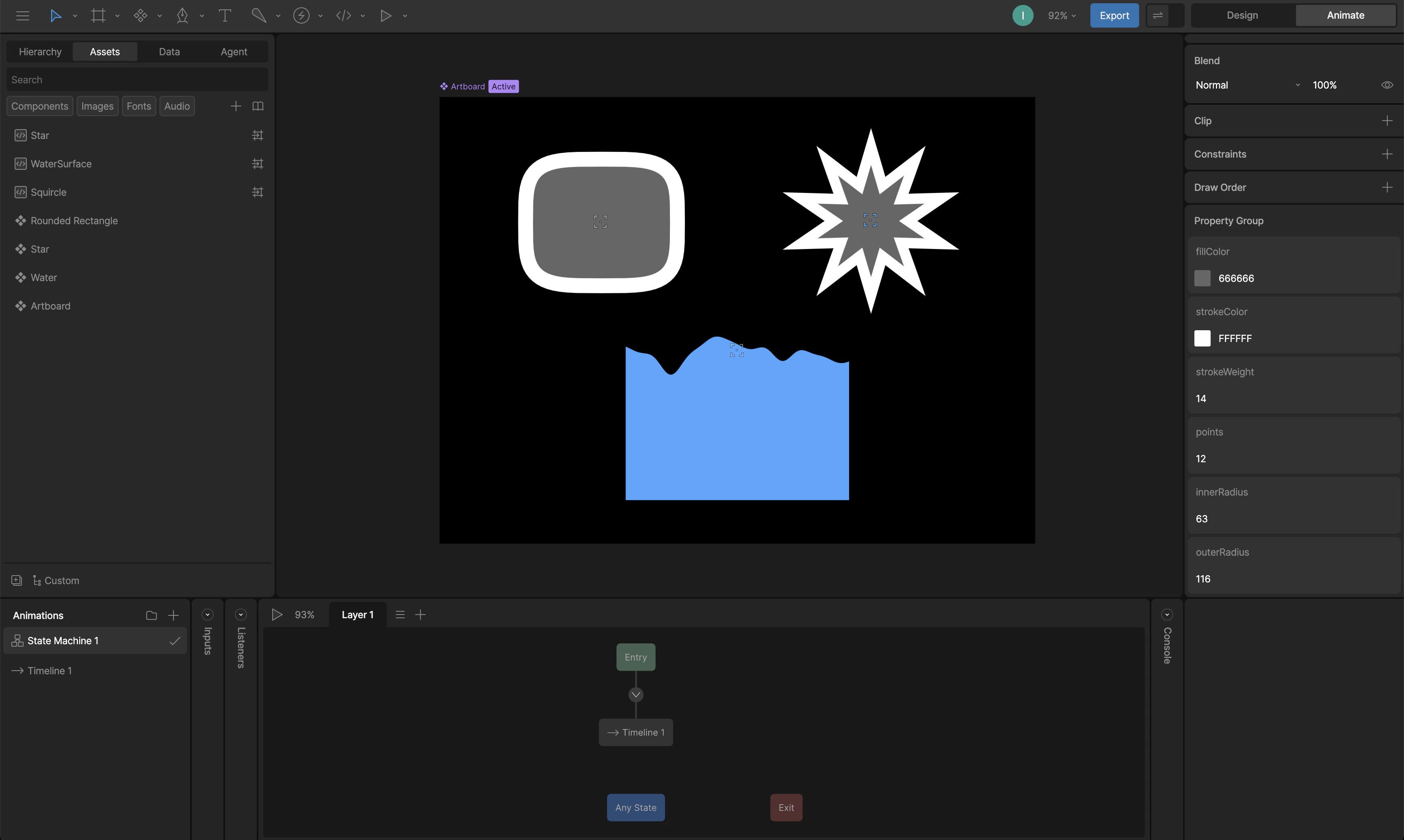
Data Binding Inputs
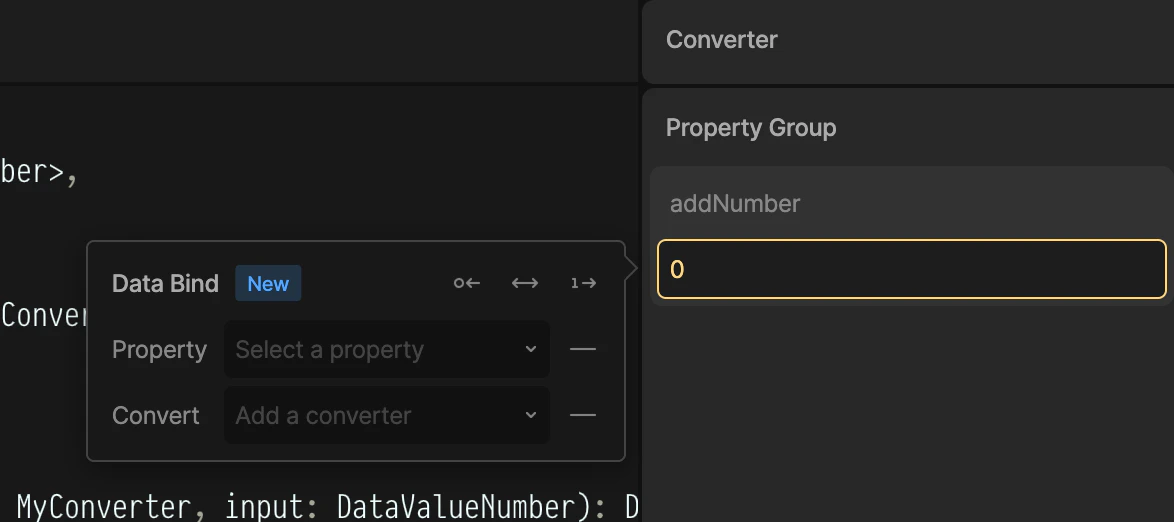
You can use Data Binding to control input values at runtime.Inputs can control scripts, but scripts can’t change the value of inputs.If you need to control a view model property from your script, access the view models through context or View Model Inputs.
Listening for Changes to Inputs
Theupdate function fires every time any input changes.
View Model Inputs
View Model Inputs let your script read from and write to View Model properties. These properties can control any element in your Rive scene via (See Data Binding).The easiest way to access view models in your scripts is through context.
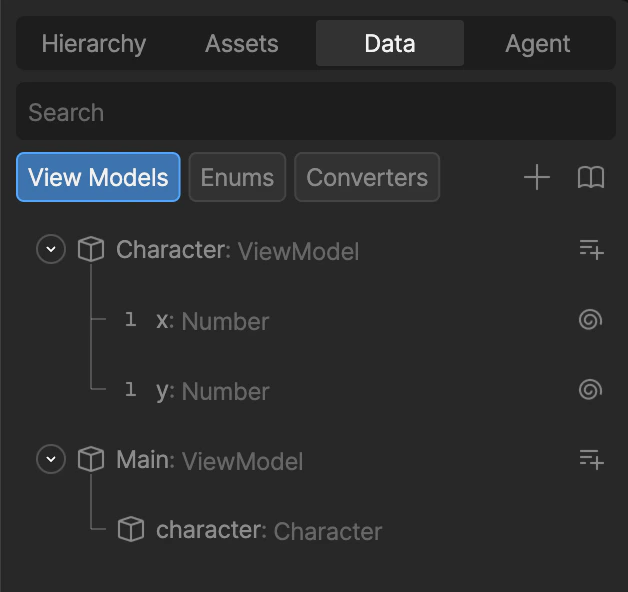
Setting Up Your View Model
In this example:- The
Mainview model has a property namedcharacter. - The
characterproperty is itself aCharacterview model. - The
Characterview model contains two number properties (x and y) that you want to control from your script.
Defining a View Model Input
Inside your script, declare a new input whose type matches the nested view model you want to reference (Data. + the name of your nested view model).
In this case, the Character view model type becomes Data.Character.
Connecting the Input in the Editor
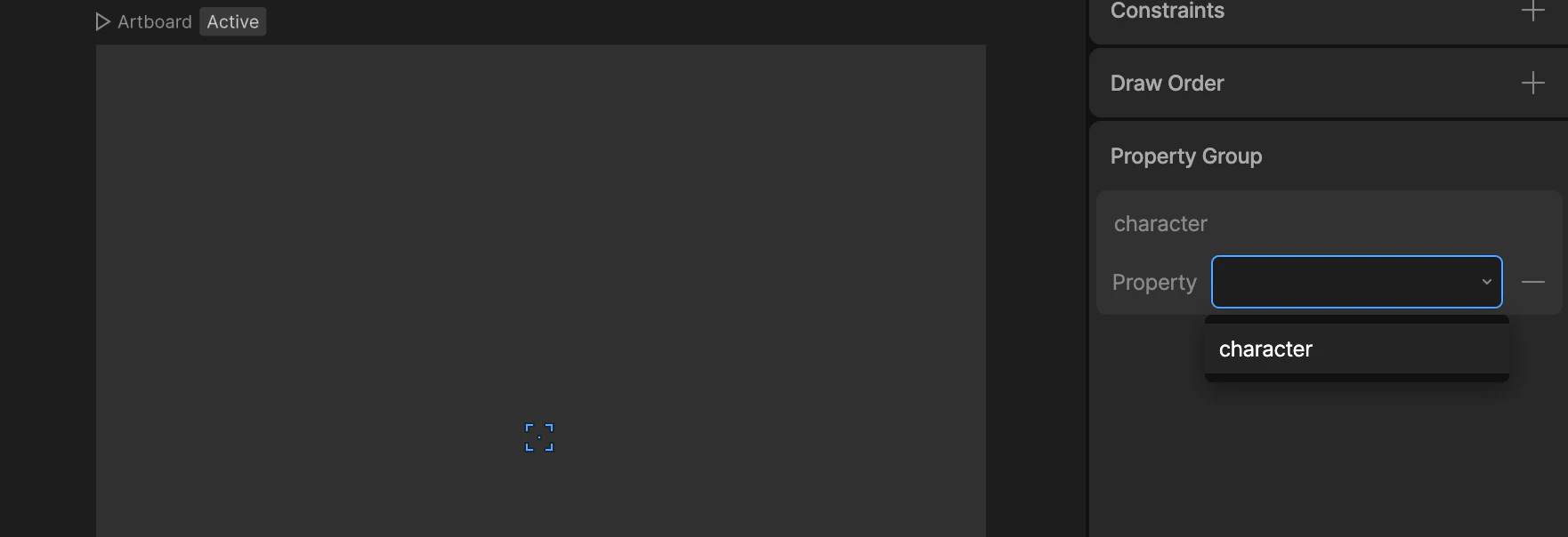
- Select your script in the Scene panel (or the converter if you’re using a Converter script)
- In the right sidebar, look for the Property Group section
- You’ll see a dropdown for your character input
- Select your nested
characterproperty from the Main view model