

Documentation Index
Fetch the complete documentation index at: https://rive-accessibility.mintlify.app/llms.txt
Use this file to discover all available pages before exploring further.
Overview
To change a Rive file’s images at runtime in Unreal, bind aUTexture to a ViewModel image property exposed via data binding in the Rive editor.
Blueprint
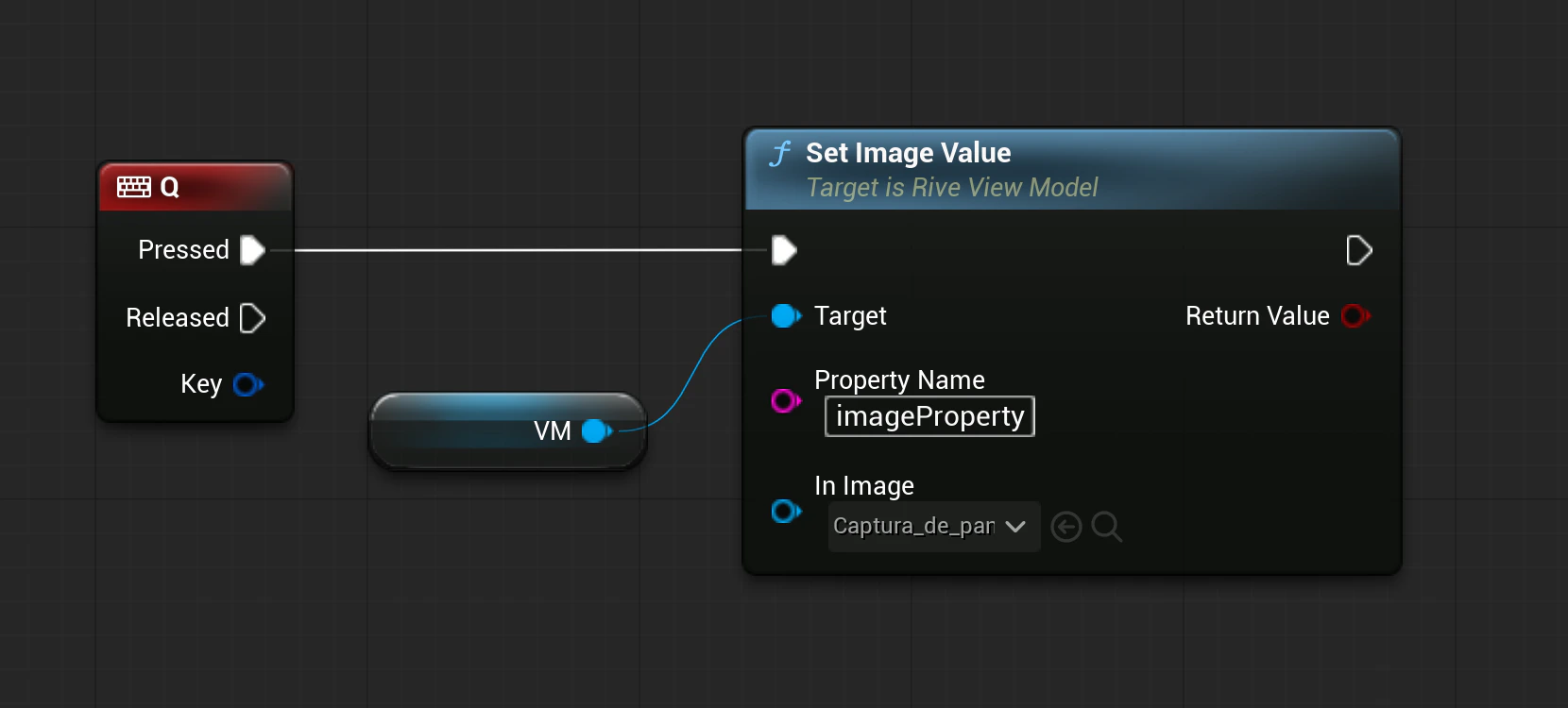
Call Set Image Value (category Rive → Data Binding) on yourRiveViewModel reference. Enter the image property name (as exposed on the ViewModel via data binding) and pick the source texture from the In Image dropdown.
C++
SetImageValue accepts any UTexture and notifies the state machine that the bound property changed. The property name must match the image property as exposed on the ViewModel via data binding.
Troubleshooting
- Image doesn’t update: confirm the property name matches the ViewModel image property as exposed via data binding, and that your
RiveViewModelis the one driving the artboard instance on screen. - Image looks wrong (dark fringes, incorrect alpha, oversaturation): verify the source texture uses premultiplied alpha.