Documentation Index
Fetch the complete documentation index at: https://rive-accessibility.mintlify.app/llms.txt
Use this file to discover all available pages before exploring further.
There are several ways to load Rive files in your React Native projects using the new runtime:
- Option 1: Using
require() - Load files from your project directory (recommended for development and OTA updates)
- Option 2: URL - Load files from a remote URL
- Option 3: Resource name - Load files from native asset bundles
- Option 4: ArrayBuffer - Load files from binary data
All loading methods use the useRiveFile hook, which returns a RiveFile object that you pass to the RiveView component via the file prop.Option 1: Using require() (Recommended)
Loading Rive files using require() is recommended because it doesn’t require a native rebuild when you update the Rive file. During development, files loaded with require() are served by the Metro development server. When you build your app, the file is automatically bundled into the app’s assets. With Expo, this also enables Over The Air (OTA) updates.
import { View, ActivityIndicator, Text } from "react-native";
import { RiveView, useRiveFile, Fit } from "@rive-app/react-native";

export default function RiveDemo() {
  const { riveFile, isLoading, error } = useRiveFile(
    require("./assets/flying_car.riv")
  );

  if (isLoading) {
    return <ActivityIndicator size="large" />;
  }

  if (error || !riveFile) {
    return <Text>Error: {error || "Failed to load file"}</Text>;
  }

  return (
    <RiveView
      file={riveFile}
      fit={Fit.Contain}
      autoPlay={true}
      style={{ width: 400, height: 400 }}
    />
  );
}
metro.config.js supports .riv files.
If you’re using Expo and don’t already have this file, you can generate it with:npx expo customize metro.config.js
const { getDefaultConfig } = require("expo/metro-config");

const config = getDefaultConfig(__dirname);

// Add support for `.riv` files
config.resolver.assetExts.push("riv");

module.exports = config;
Option 2: Loading from URL
You can load Rive files from a remote URL (e.g., AWS S3, Google Storage, CDN):import { View, ActivityIndicator, Text } from "react-native";
import { RiveView, useRiveFile, Fit } from "@rive-app/react-native";
export default function RiveDemo() {
const { riveFile, isLoading, error } = useRiveFile(
"https://cdn.rive.app/animations/vehicles.riv"
);
if (isLoading) {
return <ActivityIndicator size="large" />;
}
if (error || !riveFile) {
return <Text>Error: {error || "Failed to load file"}</Text>;
}
return (
<RiveView
file={riveFile}
fit={Fit.Contain}
autoPlay={true}
style={{ width: 400, height: 400 }}
/>
);
}
Option 3: Loading from Resource Name
You can load Rive files from native asset bundles by referencing the resource name (without the .riv extension).import { View, ActivityIndicator, Text } from "react-native";
import { RiveView, useRiveFile, Fit } from "@rive-app/react-native";
export default function RiveDemo() {
const { riveFile, isLoading, error } = useRiveFile("weather_app");
if (isLoading) {
return <ActivityIndicator size="large" />;
}
if (error || !riveFile) {
return <Text>Error: {error || "Failed to load file"}</Text>;
}
return (
<RiveView
file={riveFile}
fit={Fit.Contain}
autoPlay={true}
style={{ width: 400, height: 400 }}
/>
);
}
Adding to iOS
In the ios/ folder of your React Native project, open the .xcodeproj file in XCode. This will open up the native iOS project.Create a New Group under the root of this project and give it a name (i.e., Assets). Drop your .riv file into this group, and when prompted by XCode, add it to the Target of your app. This ensures that the Rive file gets included in the bundle resources.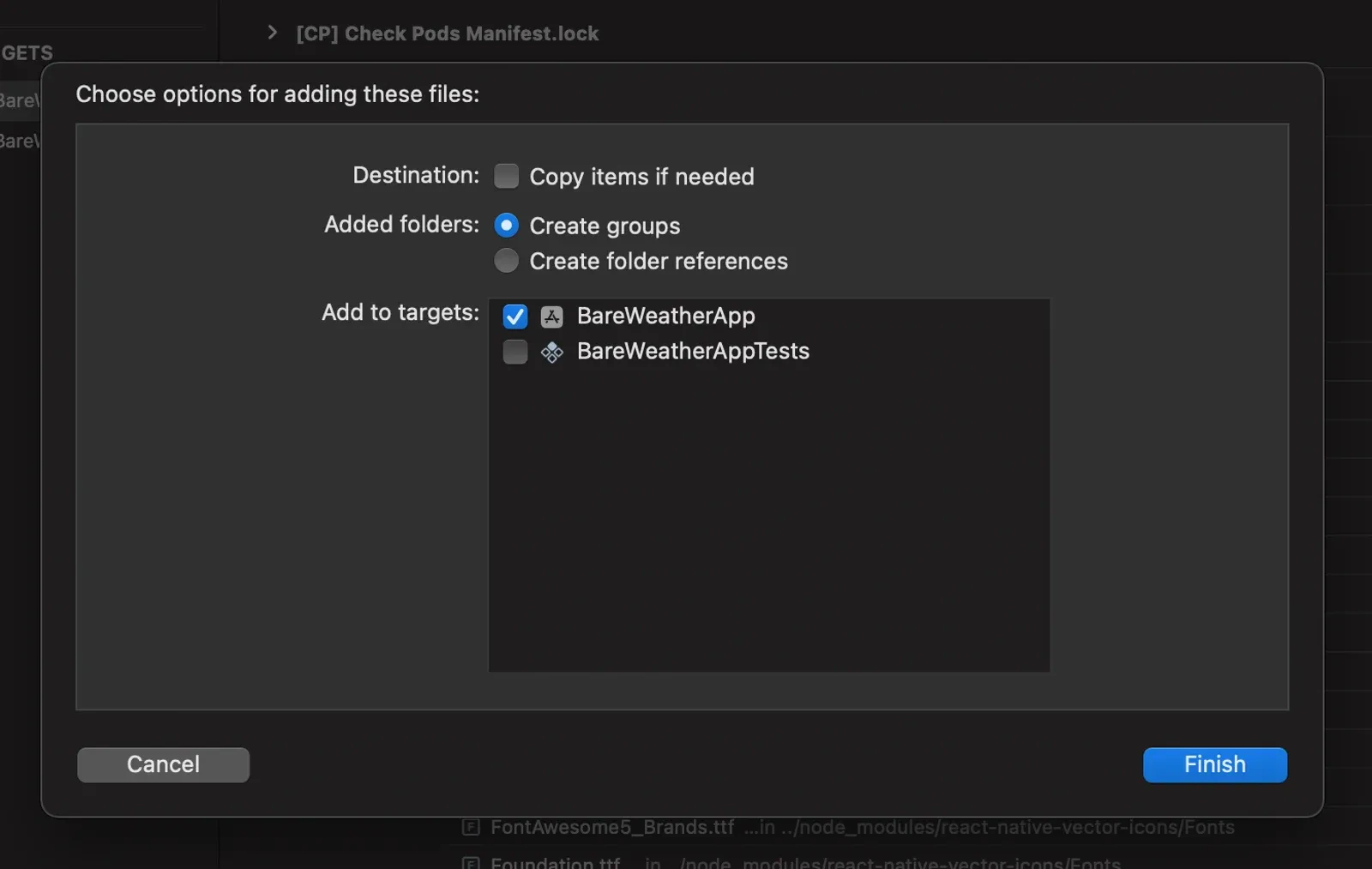
Adding to Android
Open the android/ folder of your React Native project in Android Studio.Under the /app/src/main/res/ directory, create a new Android Resource Directory, which is where you’ll store Rive file assets. When prompted to select a name for the folder and resource type, select raw from the resource type dropdown. Drop your .riv file into this new folder which ensures that the Rive file gets included in the bundle resources. Adding
 weather_app.riv to the Android projectOption 4: Loading from ArrayBuffer
You can load Rive files from binary data using an ArrayBuffer:import { View, ActivityIndicator, Text } from "react-native";
import { RiveView, useRiveFile, Fit } from "@rive-app/react-native";
import { useState, useEffect } from "react";
export default function RiveDemo() {
const [arrayBuffer, setArrayBuffer] = useState<ArrayBuffer | undefined>();
useEffect(() => {
const loadFile = async () => {
try {
const response = await fetch(
"https://cdn.rive.app/animations/vehicles.riv"
);
const buffer = await response.arrayBuffer();
setArrayBuffer(buffer);
} catch (error) {
console.error("Failed to load file:", error);
}
};
loadFile();
}, []);
const { riveFile, isLoading, error } = useRiveFile(arrayBuffer);
if (isLoading || !arrayBuffer) {
return <ActivityIndicator size="large" />;
}
if (error || !riveFile) {
return <Text>Error: {error || "Failed to load file"}</Text>;
}
return (
<RiveView
file={riveFile}
fit={Fit.Contain}
autoPlay={true}
style={{ width: 400, height: 400 }}
/>
);
}
There are several ways to include Rive files in your React Native projects:
- Option 1: URL where a Rive file is hosted
- Option 2: Add the asset to the asset bundles of the native iOS and Android projects
- Option 3: Add the asset to the asset bundles in an Expo project using
expo-asset
- Option 4: Source prop and require
When you render the <Rive /> component, you must supply the url or resourceName prop respectively to the options above, or your component will fail to load.Option 1: URL
<Rive url="https://cdn.rive.app/animations/vehicles.riv" />
url parameter when instantiating the <Rive /> component.Option 2: Asset Bundle
<Rive
  resourceName="weather_app" // weather_app.riv
/>
<Rive /> component is to reference the name of the resource/asset in the respective ios/ and android/ projects.Adding to iOS
In the ios/ folder of your React Native project, open the .xcodeproj file in XCode. This will open up the native iOS project.Create a New Group under the root of this project and name it whatever asset folder name you’d like to give it (i.e., Assets). Drop your .riv file into this group, and when prompted by XCode, add it to the Target of your app. This ensures that the Rive file gets included in the bundle resources.Adding to Android
In the android/ folder of your React Native project, open the whole folder in Android Studio. This will open up the Android project.Under the /app/src/main/res/ directory, create a new Android Resource Directory, which is where you’ll store Rive file assets, and when prompted to select a name for the folder and resource type, select raw from the resource type dropdown. Drop your .riv file into this new folder; this ensures that the Rive file gets included in the bundle resources.Adding weather_app.riv to the Android projectOnce the Rive files are added to the asset/resource bundles of the iOS and Android projects in the React Native app, you should be free to start referencing the name of the file (without the .riv extension) when creating the <Rive /> component, using that resourceName prop.Option 3: Using expo-asset with Expo CNG
<Rive
  resourceName="weather_app" // weather_app.riv
/>
.riv files into your native builds.In your app.json or app.config.js, add the expo-asset plugin and specify your .riv files or asset directories:{
"expo": {
"plugins": [
[
"expo-asset",
{
"assets": ["path/to/file.riv", "path/to/directory"]
}
]
]
}
}
metro.config.js.
If you don’t already have this file, generate it with:npx expo customize metro.config.js
const { getDefaultConfig } = require("expo/metro-config");

const config = getDefaultConfig(__dirname);

// Add support for `.riv` files
config.resolver.assetExts.push("riv");

module.exports = config;
npx expo prebuild first if you’re using any expo run:* commands.If you’re using an earlier version of Expo, you can find an alternative approach in this Github Issue.Option 4: Source Prop with Require
<Rive source={require("./flying_car.riv")} />
source prop with require() to load the Rive file by referencing its path.To make this work, ensure your metro.config.js supports .riv files.
If you’re using Expo and don’t already have this file, you can generate it with:npx expo customize metro.config.js
// Add support for `.riv` files
config.resolver.assetExts.push("riv");

